Summary
Got invited by your GM/DM to play on Fantasy Grounds? Maybe even Savage Worlds?
Great then look through this guide as it is meant to quickly get you up and running with Fantasy Grounds.
Note
Note that later portions of the guide will be heavily Savage Worlds focused. So if you’re joining a D&D (5e) campaign, then you’ll probably be well/better off following FG’s own Quick Start Guide.
Setup
This section deals with preparation, meaning creating an account, setting up Fantasy Grounds, joining a campaign. So everything
Account Creation
Although Fantasy Grounds is free, as of the end of 2025, you need to create a free account!
This account can and will be used for
Note
Even if you choose to install Fantasy Grounds through Fantasy Grounds - ELI5, you’ll need the account!
Setting this up beforehand saves you time and frustration when launching the software, so simply do it before or during Fantasy Grounds - ELI5
- Simply visit the website under: https://www.fantasygrounds.com/forums/register.php
- Input your date of birth. This can’t be changed later on!
- Continue
- Input all the remaining details
- The username is case-sensitive, so
MonsterSlayer3000is not the same asmonsterslayer3000! - If you’re located in Germany like me, make sure to correctly set the Time Zone! Default is GMT, whereas the correct one should be GMT +1
- You can deselect all Email notifications, doesn’t matter
- Agree to the Site Rules
- The username is case-sensitive, so
- Complete the registration
- Confirm the Email you’ll receive
Tip
You can also link your Steam account to your Fantasy Grounds account. This will let the Fantasy Grounds - ELI5 download your content purched through Steam! There are several promotions around the year that might solely affect Steam, so it’s sensible to do. It’s outside the scope of this guide, though, so check out the official documentation.
Installation
There are multiple ways to install Fantasy Grounds. You can either choose to use the official installer from https://www.fantasygrounds.com, or use Steam. It doesn’t really matter. Even the Steam version installs the Fantasy Grounds - ELI5, so functionally they’re identical.
Installer
- Go to https://www.fantasygrounds.com/home/FantasyGroundsUnity.php
- Download the version appropriate for your Operating System
- Click through the installer and/or consult the official installation documentation should you have any questions or problems
- You should be greeted by the Fantasy Grounds - ELI5 or the Fantasy Grounds - ELI5 (depending on whether or not you followed through with the official documentation in Step 3)
Steam
- Search for Fantasy Grounds VTT in the store, or simply follow the link
- Add it to your library and download it
- Launch the app
- You should be greeted by the Fantasy Grounds - ELI5
Fantasy Grounds Updater
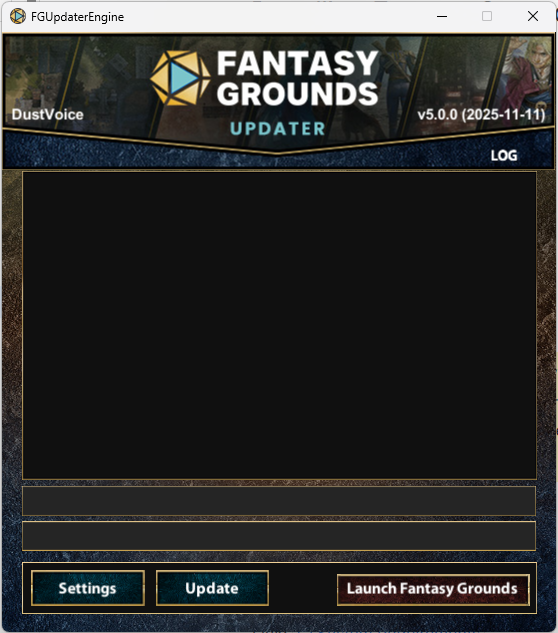
- You should be welcomed by the Updater upon launch. If you used the Fantasy Grounds - ELI5, make sure to launch it via the Fantasy Grounds VTT Updater shortcut, not Fantasy Grounds VTT.
- Regardless, you should press Update in any case. This will download the basic complementary content for the VTT. Depending on your Internet and PC speed, the duration of the first Update may vary.
- After it states that everything has been updated successfully, you can Launch Fantasy Grounds, dropping you into the Fantasy Grounds - ELI5.
Welcome Screen
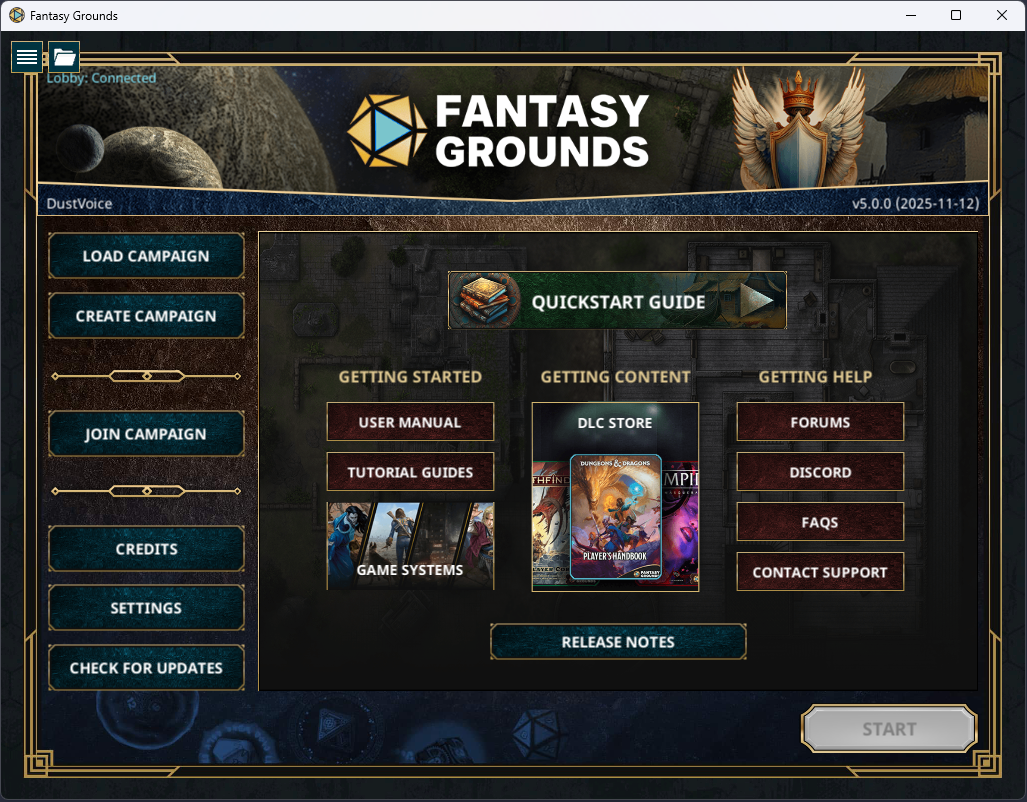
The welcome screen is the central hub of the program. Here you can
- Create and Load campaigns
- Join a campaign
- Return to the setup / update screen of the Fantasy Grounds - ELI5
Info
You don’t need to own any content you’re gonna play, as a player. Only the GM/DM needs it to host the game.
The culprit is that albeit the following sections detailing the different aspects of a SWADE campaign, you can’t test this out yourself without owning the Savage Worlds (Adventure Edition) ruleset for FG, which (in contrast to the D&D 5e ruleset) is not included with FG and needs to be purchased seperately for around ten bucks.
If you don’t want to GM Savage Worlds yourself you don’t need to buy anything!
Dice Skins
The only exception to the above are dice skins! These are on a per-player basis and can’t be shared. There are a handful of “default” dice available (with color customization), but especially dice with effects are a premium purchase for your account.
Joining a game
To join one of my campaigns
-
Click on Join Campaign
-
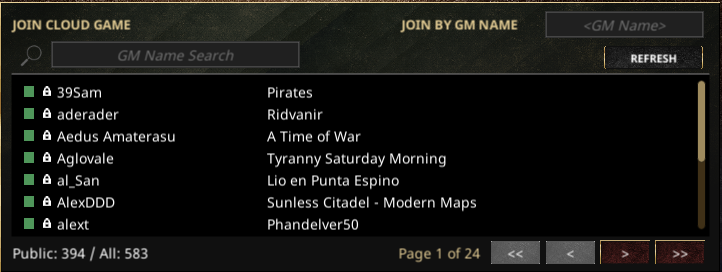
In the middle part, locate the join by GM name textfield
-
Input DustVoice (case-sensitive!)
-
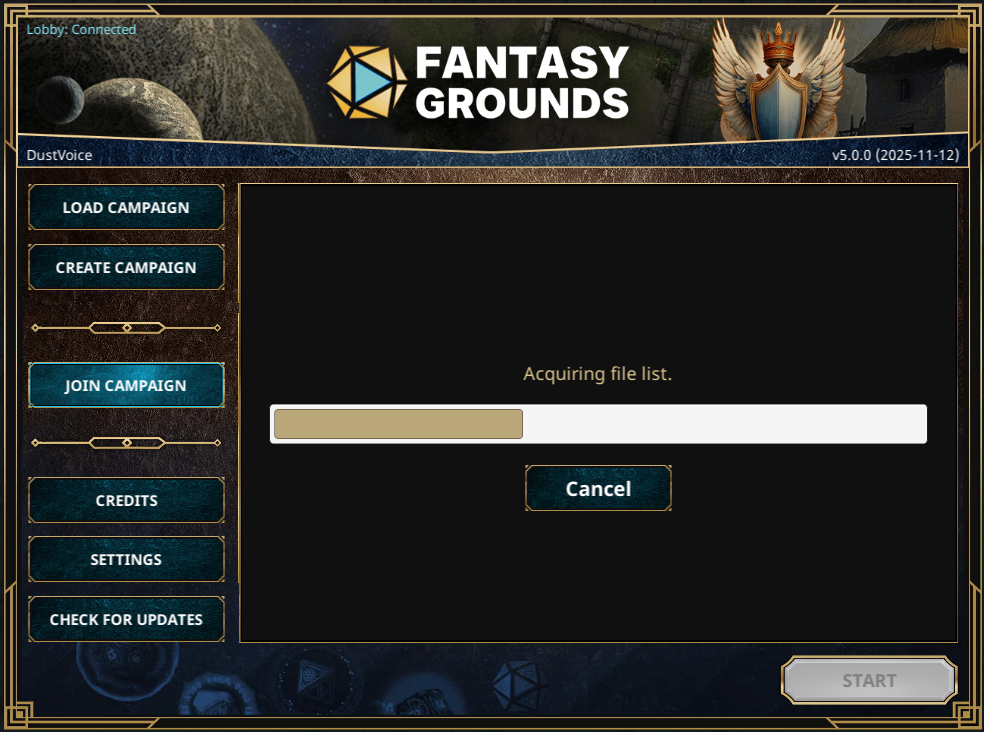
Click on Start. After clicking start, it will take a while depending on how much of the necessary content of the campaign you don’t own and therefore haven’t downloaded yet. Simply wait for everything to finish and for the campaign to load. This will be significantly sped up upon reconnects!
-
Rejoining a campaign you were a part of already should be easy by utilizing the History section

-
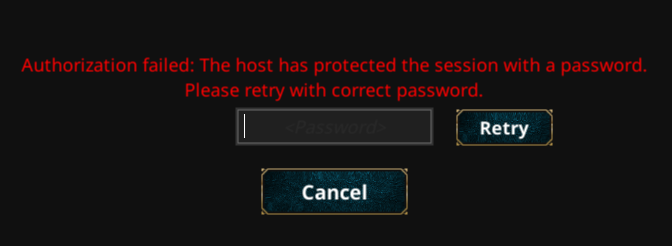
In case this is a non-public campaign, I’ll set a password to prevent unauthorized joining.
-
When this is the case, FG will prompt you for the password
-
Input the password and click on Retry
-
Quickstart (SWADE)
I’ll give you a quick overview over the UI, different useful features you as a player need to be aware of, etc.
Caution
Please keep in mind that the optics can drastically change depending on which skin has been setup for the campaign.
Example: Default Theme
Example: "Core" Theme
Example: "SW - Deadlands Dark Ages"
Also keep in mind that I’ll explain the relevant parts of the Savage Worlds (Adventure Edition) ruleset. For example, Dungeons and Dragons (5E) looks completely different.
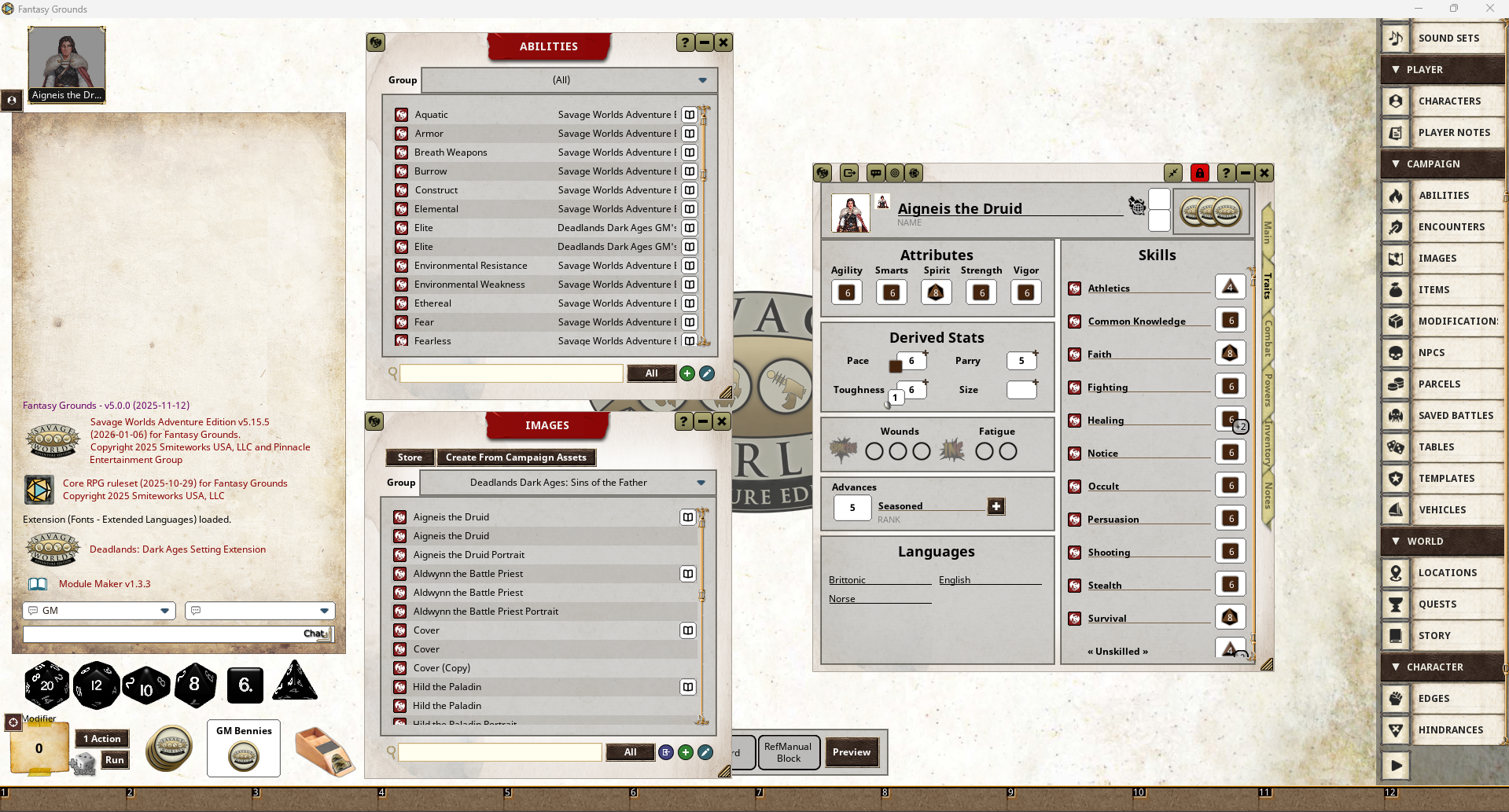
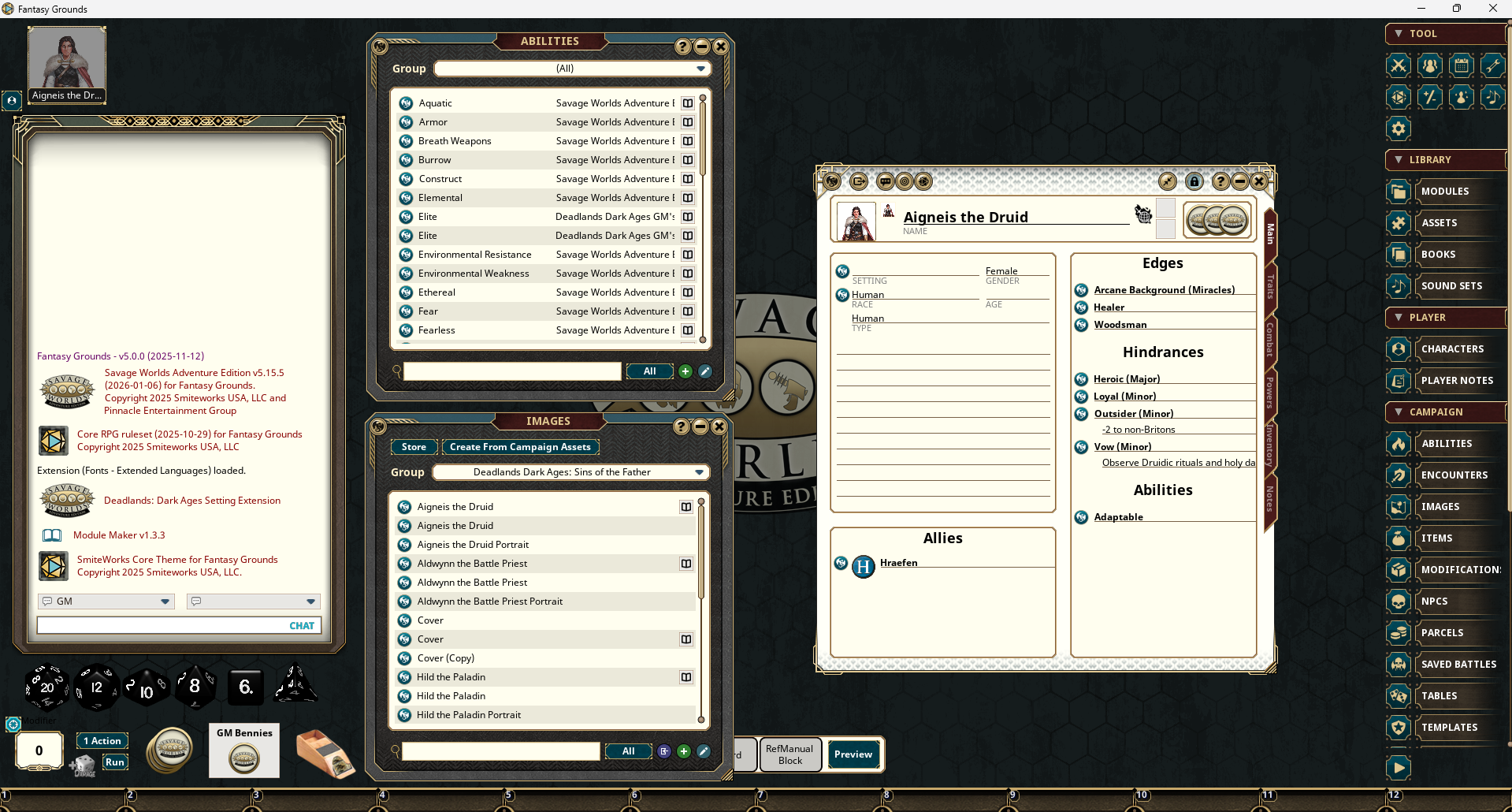
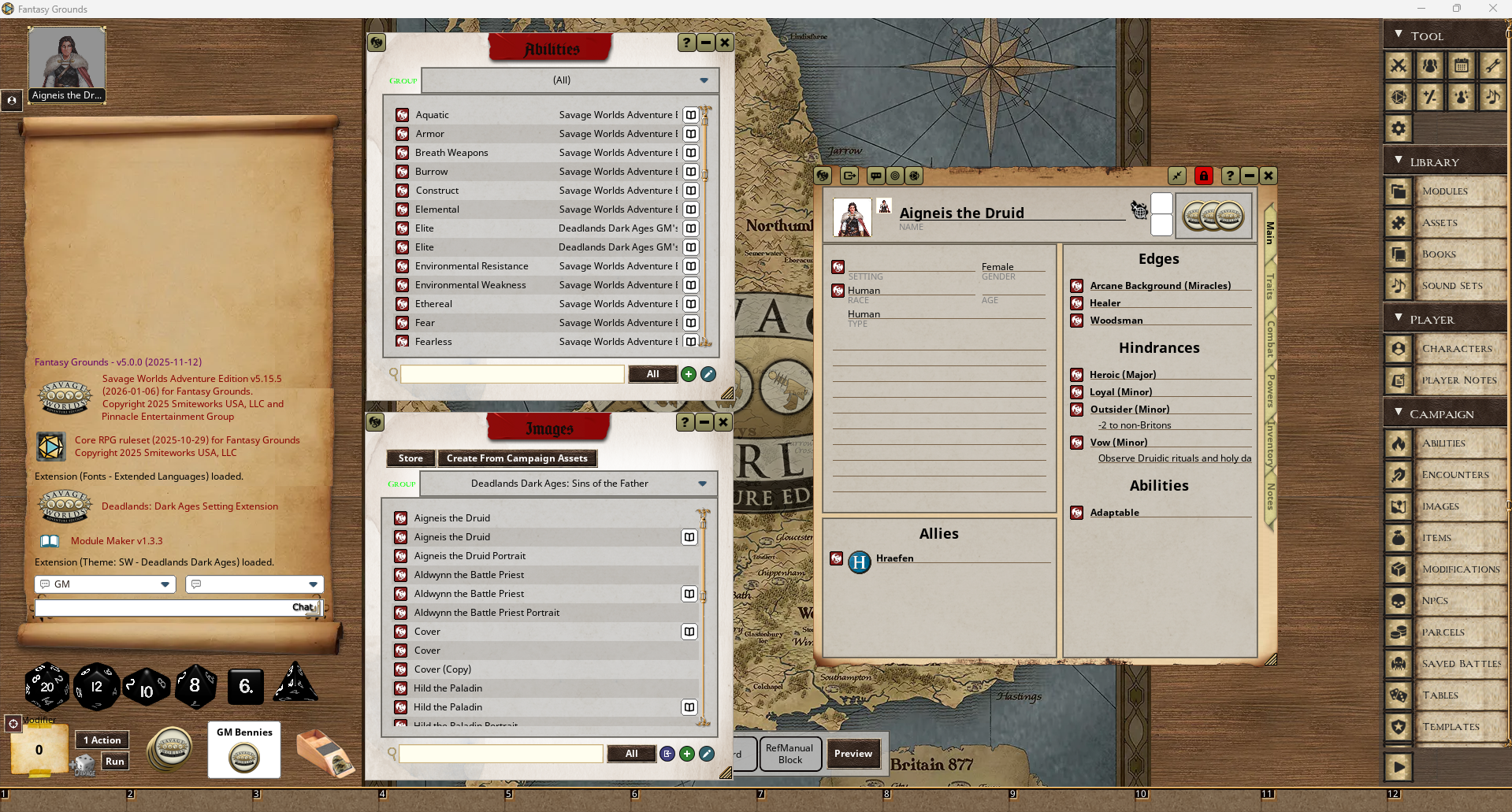
I will use the Deadlands: Dark Ages theme (called “SW- Deadlands Dark Ages”) for the following parts, simply because that will be my next campaign. Apart from the design of some components, the general layout shouldn’t really change, if you don’t change the ruleset.
Campaign Setup
The first popup you’ll be presented with is the Campaign Setup window. Please don’t just click it away as it is an essential part of joining any campaign (at least the first time).
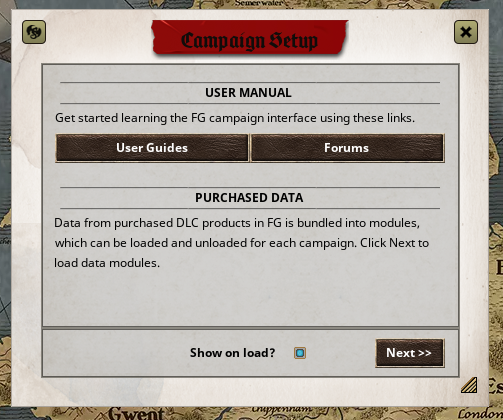
Fantasy Grounds is a bit weird in that with other VTTs the Host has complete control over what modules are active. In Fantasy Grounds the Host provides the content, yes, but that only means you (or rather your account) doesn’t have to own the content. You still need to enable it!
But one step after the other. If you feel lost, simply ask your GM, they’ll be able to help you out with the specifics!
-
Click Next, to proceed with the setup
-
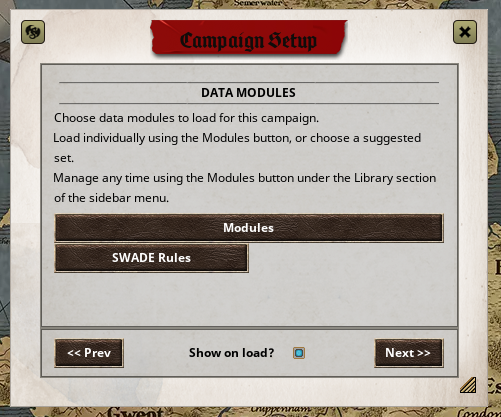
As the next page informs us, this is the moment you can load the included modules for the campaign. This is absolutely necessary or else you won’t be able to use said content. Your GM should be able to tell you exactly what to activate for a specific campaign. To proceed, click the Modules button.
-
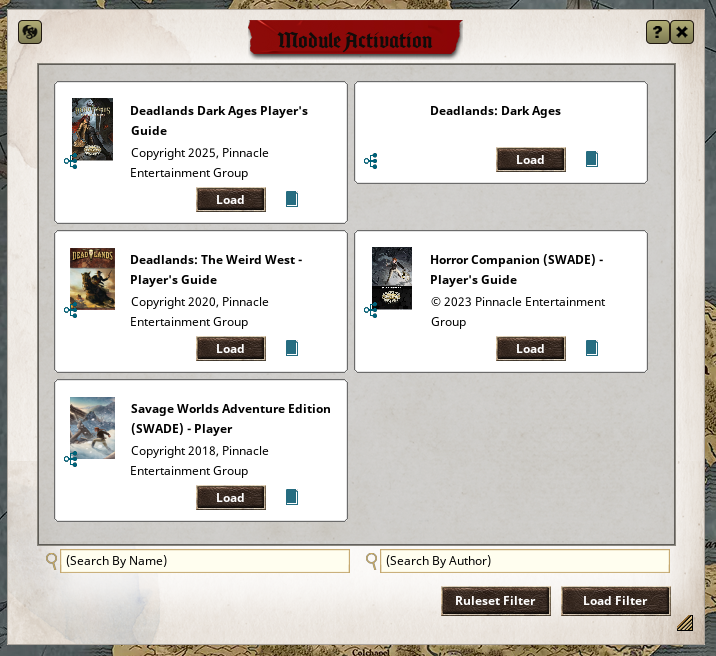
This will present you with a choice of modules the GM has activated for the campaign. But caution! This doesn’t mean you should blindly activate everything! As I said, ask your GM which items to Load! This will be remembered upon reconnects, so you only need to do it once
-
After you’re finished, simply close the Window using the X.
-
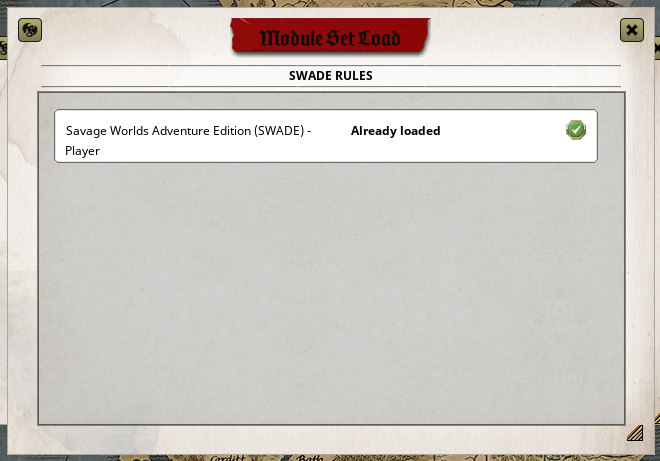
Clicking on SWADE Rules, make sure that every necessary ruleset is loaded indicated by a green checkmark. Again, ask your GM they’ll know. In this example I only have one ruleset, some SWADE settings however provide additional modules in this section.
-
Close the window once you’re done
-
Click on Next
-
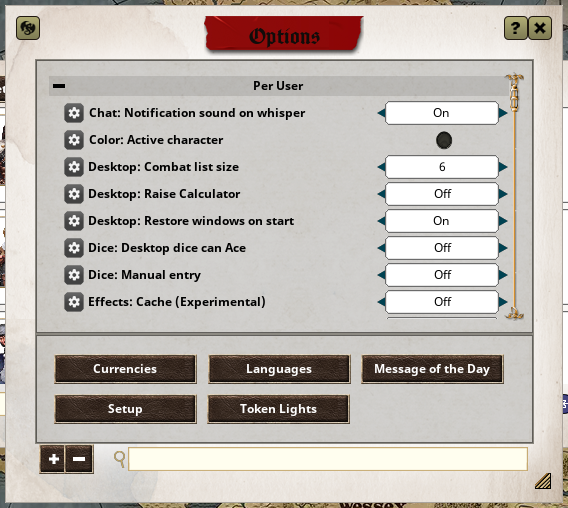
In the options you can change only some user-specific campaign settings. You can also recall the Setup window we’re discussing, if you ever need to open it again. None of these settings are necessary right now, though, so we will skip this part. If you, however, encounter any gripe or issue during the campaign, you might want to look if it’s a user setting and/or ask your GM. You can always access the settings menu later through the Cog icon under the Tool category in the sidebar.
-
Close the Options and click on Finish
Now you’re done with the setup and should be presented with another window underneath it.
Character Selection
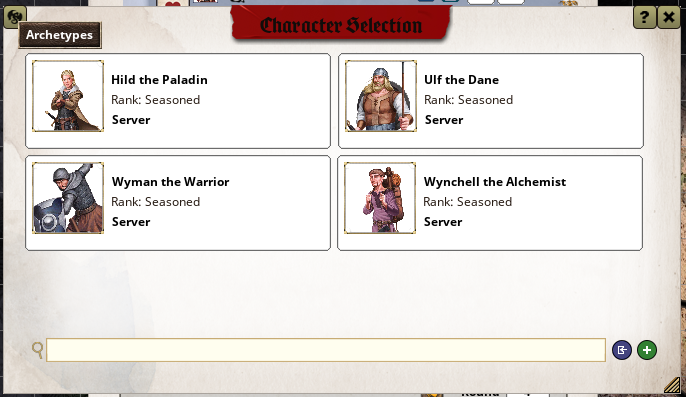
This window is used to select a character. You may either choose an available premade one, or create one using the green ”+” button. Selecting/Creating a character makes you the owner of it, which is required for a multitude of interactions.
Caution
Don’t go rogue here! Always discuss character selection and creation with your GM and the other players.
General Layout
Note
Note that although the general layout stays the same, it will scale differently for different monitor resolutions. I would always advise to play using the highest resolution available as to maximize the screen space for arranging windows.
The main gripe players have with FG as a VTT is screen real estate. This can definitely be effectively mitigated by playing on a moderately sized screen.
So if you’re stuck on a 11” Netbook, maybe get out an HDMI cable …
When all the “preliminary” windows are closed, you should now get a pretty good overview over the UI layout.
As you already might’ve noticed, Fantasy Grounds makes heavy use of windows. Some love it, some hate it. You can’t change it either way so no point in arguing.
Tip
You can minimize almost any window by pressing the appropriate button in its title bar
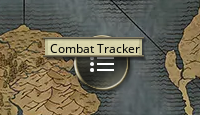
This will collapse the window into a (sometimes more, somtimes less) indicative symbol-button you can drag around. To restore the window, simply click on this circle symbol. It will also restore when it would normally be opened from scratch. Hovering over it will also tell you what window it was in the tooltip.
The main benefit is that the position & size will be remembered when minimizing/restoring! So you don’t need to arrange everything anew.

Generally every visible part in this screenshot is locked, which means you can’t move it around. Many parts can be unlocked though by right clicking it and choosing Window -> Unlock Position. However, for the time being, we’re gonna leave everything as it is.
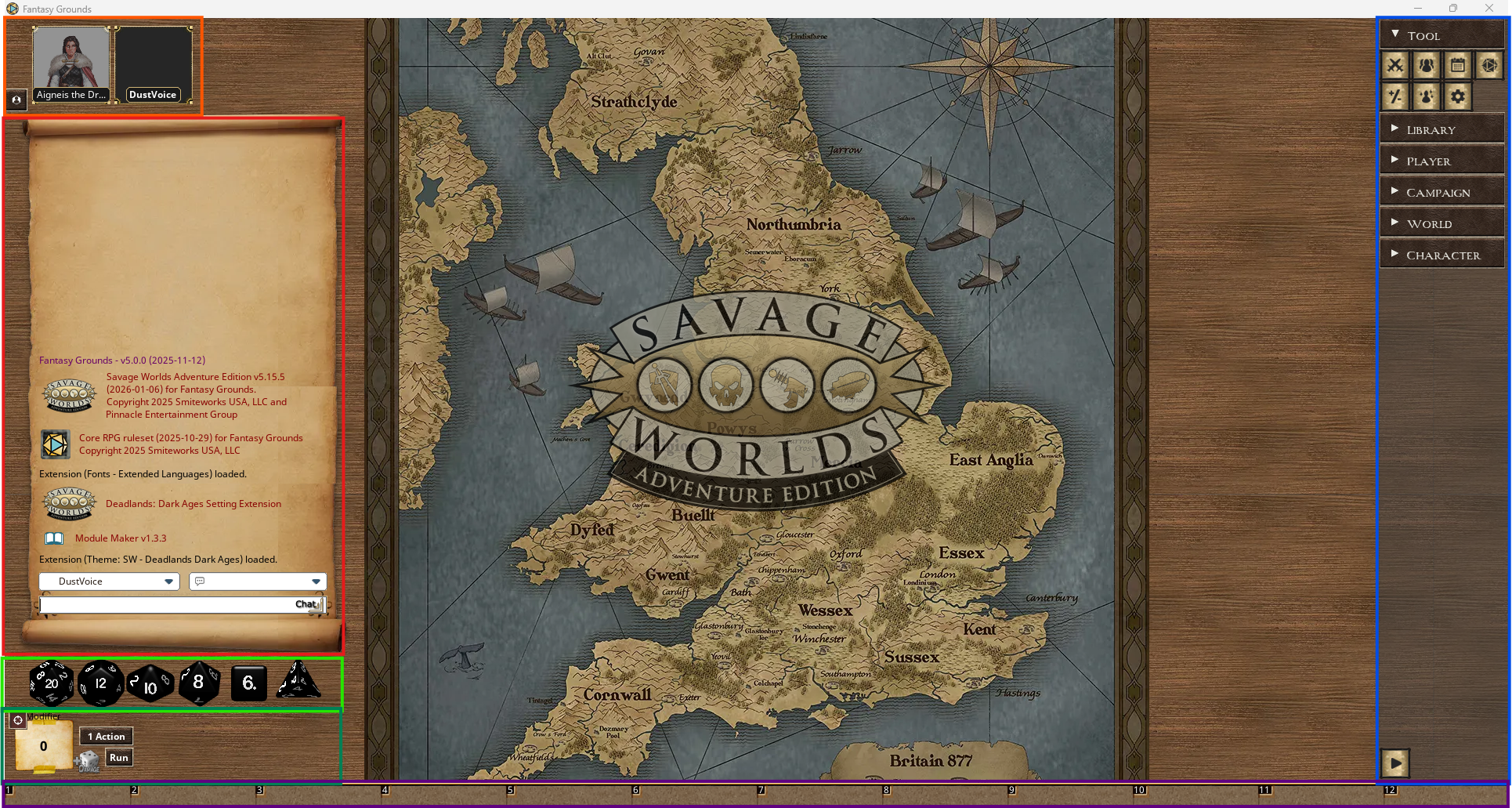
I’ll give you a quick overview over the different color-coded parts / areas in this image.
Red: Chat Window
This is the chat window.
-
In here you can track everything that happens.
-
Every (public) dice roll, usage of bennies, receival of advances and a multitude more things will be mentioned here.
-
If the story has NPCs talking, it will/should be in here.
-
You as a player can also chat and roleplay as your character.
-
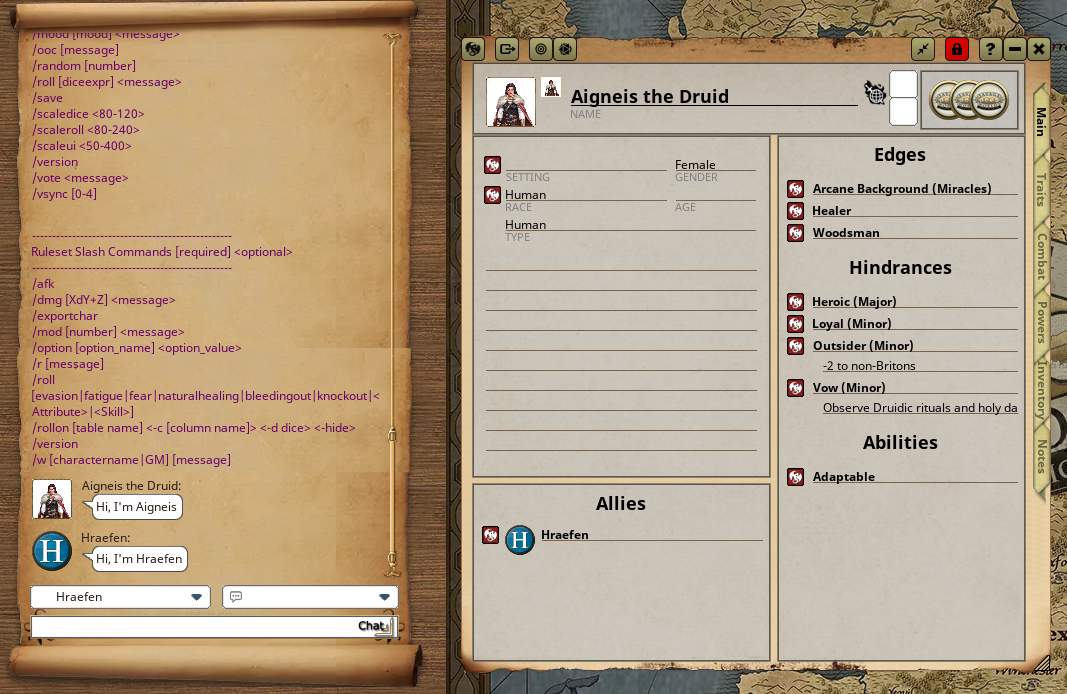
The left drop down above the text field is the speaking as field, which means if you control more than one character (or a character with allies), you can select from which you want to send the message.
-
The right drop down is the language selection. If your campaign features more than one language, you can choose which to use. This is also interesting as characters not understanding the spoken language will only see gibberish in the respective chat message.
-
A preceding
/enables you to use commands./helpwill give you an overview over the available ones.
Orange: Party/Combat Tabletop List
This is the Party Tabletop List starting out.
- It lists any character active in the campaign and players which haven’t chosen a character yet.
- Clicking on a character (you own) opens up the Fantasy Grounds - ELI5
- If you mistakenly took ownership of a character or want to swap it, right-click the character icon and select Release.
- Clicking the pictogram in the bottom left of this section switches the mode of the list to the Combat Tabletop List:
- Here you can see any character, NPC, …, involved in a current combat.
- You can see wounds, initiative, turn order, faction, etc.
- There’ll even be a small next turn button to complete your turn.
- You can also see the upcoming round number and therefore see when the round is over
- Clicking the bottom left button again will turn this section back into the Party Tabletop List
Light Green: Dice Tray
- Normally you don’t really need this, as I’ll mention in the upcoming Fantasy Grounds - ELI5 section.
- However you can always roll manually (at the cost of non-automation).
- To roll, simply click and drag on the die you want to roll and flick it across the screen
- If you want to cancel a roll, don’t move the mouse and drop the die
- To add a die of the same type (e.g., 2d6), simply right click.
Tip
If you want to make a roll without it showing up in chat (although discouraged and not used in Savage Worlds, as it is an open-roll system), hold down
Altbefore picking up the dice and hold it until they finish landing.
Dark Green: Modifier(s)
- This section features a simple modifier interface enabling quick and on-the-fly modifiers.
- Simply use the scroll wheel on the Modifier area to set a -X/+X modifier.
- You can also click it once. This puts it into Adjustment mode, where you can now type in the desired number using your keyboard
- Top Left button toggles whether your selected targets in the Fantasy Grounds - ELI5 are also supposed to be targeted by rolls. This should be mostly turned on, but can be helpful to turn off, if you have made a complicated target selection but need to roll something different first. Or if you want to e.g. roll all the bullets of a gun first and then Fantasy Grounds - ELI5 from the chat window to individuals. Remember to turn it back on afterwards to prevent major confusion
- To the right you can select how many actions (of max. 3) you want to perform. This automagically applies the appropriate multi-action penalty.
- You can also click the little +Damage die if you rolled a raise on a Fighting/Shooting/… roll and need to roll damage manually. This will add the bonus damage die to the roll.
- If you click on run, your character will roll their run die, tell you the summed up pace for the round in the chat and apply the run penalty to all other rolls.
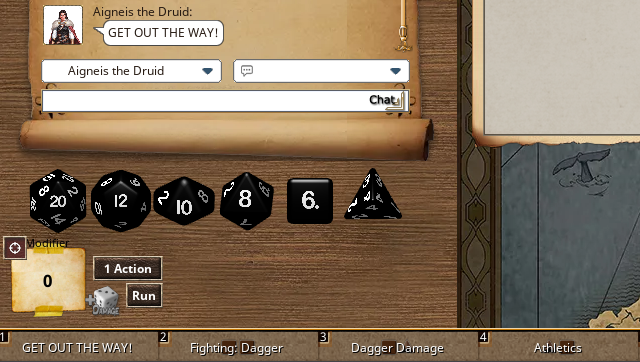
Purple: Shortcut(s)
-
This is a very powerful feature of FG.
-
You can already drag a multitude of things around in FG.
-
With this you can drop stuff on a macro field to make a shortcut.
-
If you have a frequent chat message or command, type it in chat, don’t press return and drag it into a field. Simply pressing the field will issue the message/command.
-
If you have frequent rolls, e.g. an attack or skill, drag it on here

-
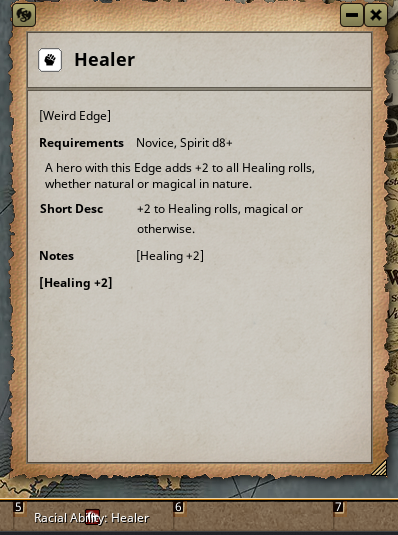
If you have, e.g., a rule you always forget, or maybe a description of an Edge, drag it on here
-
Even better, drag some dice from the Dice Tray onto here! You can even accumulate dice for a custom roll. For example if you first drag 2d6 and then 1d4 onto the same shortcut, it will produce a 2d6+1d4 roll shortcut!
-
The possibilities are endless
-
The best thing: You don’t have to click the field. Simply press the F-Keys! So for the 1st slot, press F1, and so on!
-
The absolutely best thing: Try pressing modifier keys! You have completely new slots. So
Ctrl + F1,Shift + F1,Ald + F1,Ctrl + Shift + F1,Ctrl + Alt + F1,Shift + Alt + F1and finallyCtrl + Shift + Alt + F1are all different slots. That ought to be enough, don’t you think?
Blue: Sidebar
- The Sidebar can be collapsed/expanded in three different degrees by using the arrow button on the bottom
- It features multiple categories
- Tools
- General purpose tools needed all the time
- Should be kept unfolded
- Library
- Accessing module content
- Generally not needed for players
- Player
- Character Selection/Creation
- Player creatable notes
- Useful if you use the player notes, but can be kept collapsed for now
- Campaign
- Campaign specific elements like information about NPCs, etc.
- Has to be shared with players, so only a minimal amount of content to be found (at the start)
- Generally all shared content will plop up, so it isn’t needed that much
- Can be kept collapsed to save space until needed
- World
- General information about the locations, quests and lore of the world
- Story is much more prominently used for the rule book(s)!
- Unless you want to look at a quest (progress) or rule, you can keep this collapsed
- Character
- Heavily used for character creation / modification (advancement)
- After that everything should be accessible from your character sheet
- Keep expanded for character creation / modification
- After that collapse
- Tools
- As you can see, many parts are not needed during a majority of time, so it makes a big impact on available screen space to get familiar with the categories & symbols and then collapse the whole side bar to icons. Hovering over the buttons will display a tooltip of their names, so you don’t need to fully memorize everything.
Tools
As mentioned in the overview of the Sidebar, the Tools category is the most important for players.
I’ll therefore give a quick overview of said available tools. I’ll traverso through the list row by row from left to right
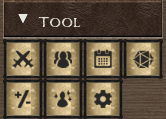
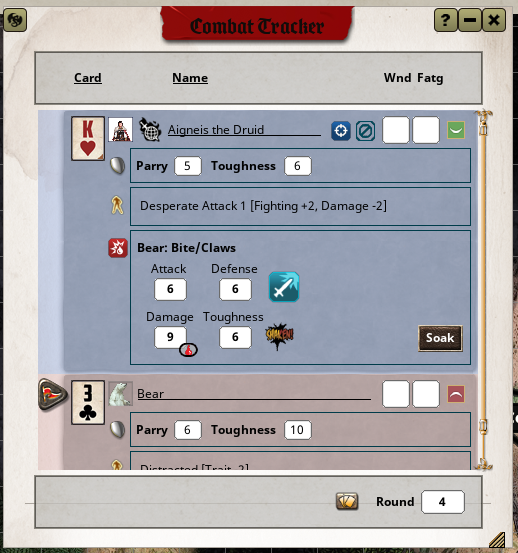
Combat Tracker
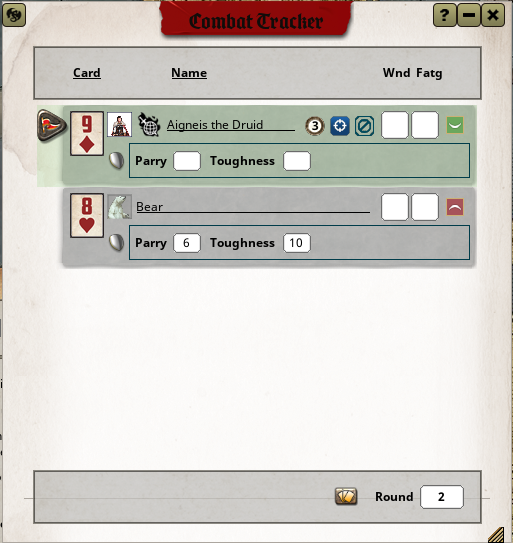
- This is the bread and butter for any encounter!
- You can see all involved characters and (revealed and visible!) NPCs together with quick summaries of their stats and statuses.
- You can see initiatives, as well as the current round.
- You see how many Bennies you have (3 in the screenshot). Works exactly the same as on your Character Sheet!
- You can quickly use the target symbol to select new targets and the button beside it to clear them.
- You can also directly drop dice onto a NPC/Character in the Combat tracker to make it a target when Fantasy Grounds - ELI5!
- Although some players (which have previously GMed in FG) lament the limited functionality available to players (the GM Combat Tracker is way more advanced and loaded), it has everything a player needs to participate in an encounter!
Tip
Apart from dragging Bennies, to deflect incoming damage, you can also hold down
Ctrlwhile looking at the Combat Tracker, to make a Soak button apper
Party Sheet
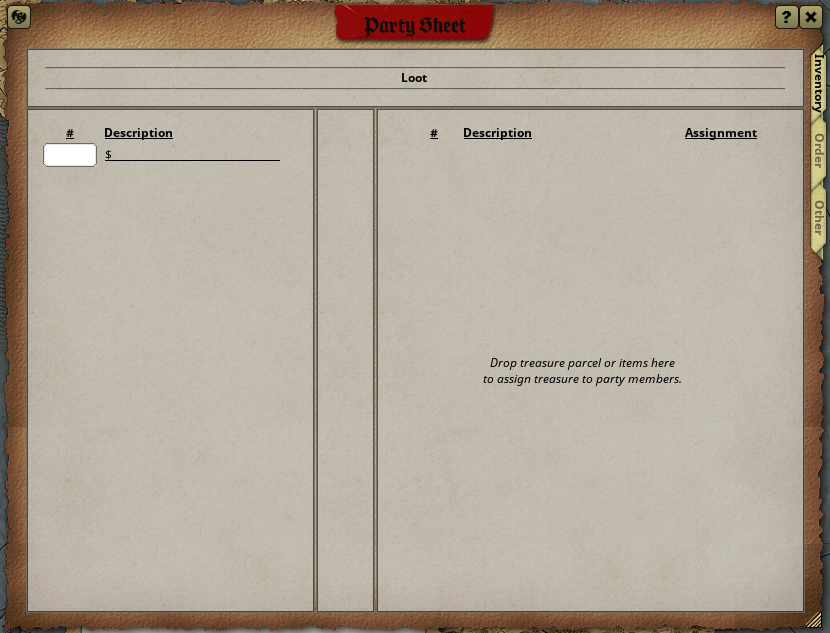
- This is essential for your characters party management
- Information on here is shared between party members
- The Inventory tab enables your party to quickly distribute found/won items among the members, as well as currency.
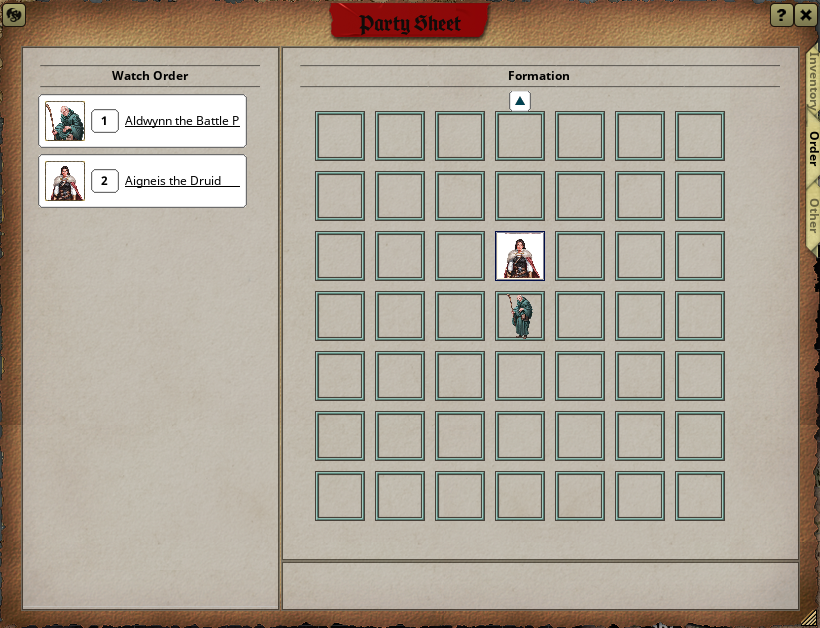
- The Order tab determines the walking/travelling order/formation and is used when your party gets quickly thrown into an encounter. This of course doesn’t apply if the GM overides positioning if the story requires it. It also has a Watch Order list, so that it is evident in which constellations characters hold watch, e.g., at night.
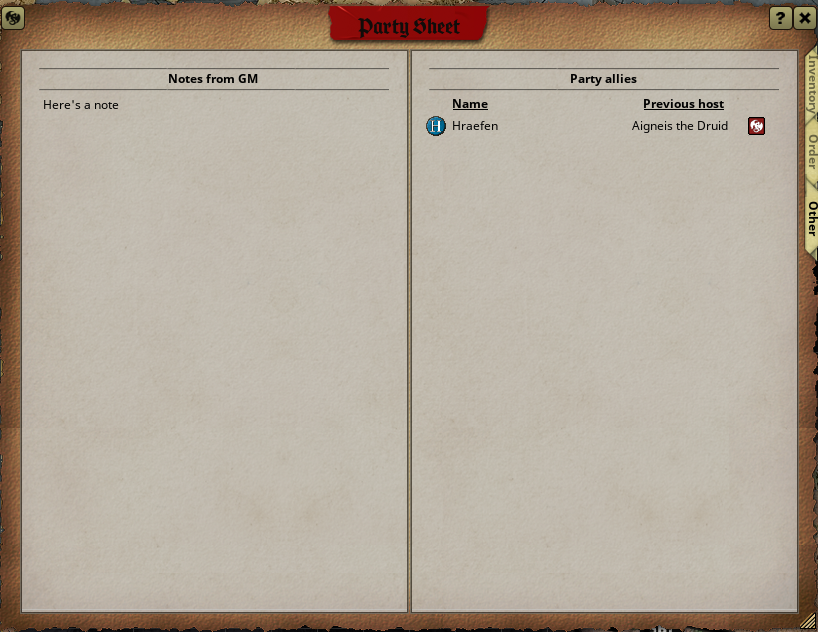
- The Other tab features functionality for Party Allies (insted of character specific allies) or notes from the GM.
Calendar
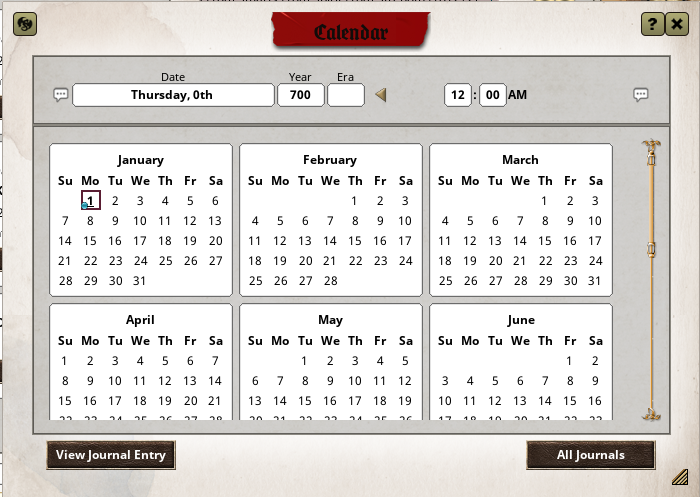
Should the GM have enabled the calendar, this is used to add journal entries to specific dates. Useful to keep track of time (or lack thereof …)
Dice
This enables customization of the dice (tray)! Here you can select your custom dice skin.
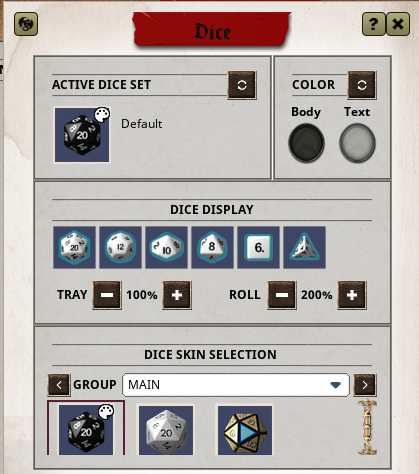
Either simply select a color you like in the top right or, if you have purchased dice pack(s) from the Fantasy Grounds store
Caution
At least in my games, I only disallow the players to use dice from the NPC Dice Pack(s)!
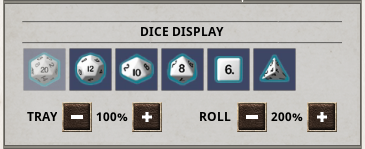
More importantly you can in-/decrease the size of the dice tray and/or rolling dice.
By clicking on the dice icon(s) above the size modifiers, you can (de-)select the dice available in the dice tray.
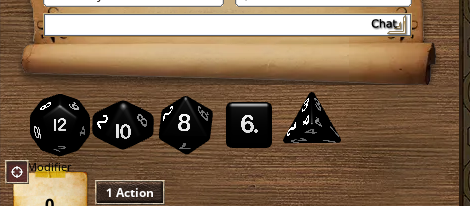
To save space I recommend disabling the d20 from the dice tray as it is seldom used in Savage Worlds (apart from table rolls, which are automatic).
Modifiers
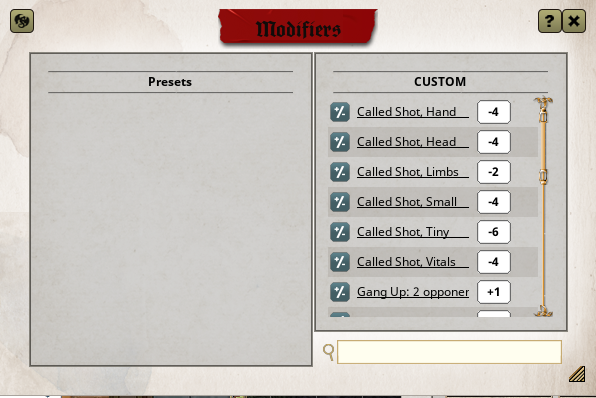
- There are a good amount of modifiers needed in combat.
- Though the GM can and probably will apply these himself at the beginning, it is nice if players have some agency too and can help lighten the load on the GM.
- Things like Called Shot(s) and Off-Hand penalties but also buffs like Gang-Up are present here.
- These are modifiers to a roll and depending on the situation might not be applied automatically.
- Simply click a modifier and you’ll see that the modifier has affected the previously discussed Fantasy Grounds - ELI5 region.
-
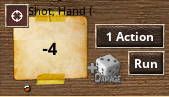
For example, I clicked on Called Shot: Hand, which produced the following
-
As you can see it added the -4 penalty
-
You can also see a miniscule (unfortunately it’s really god damn small) dot appeared under the modifier
-
If you want to get rid of the modifier, you need to click said tiny dot.
-
You can also simply use the scroll wheel to offset the -4, though technically this doesn’t get rid of the modifier.
-
Effects
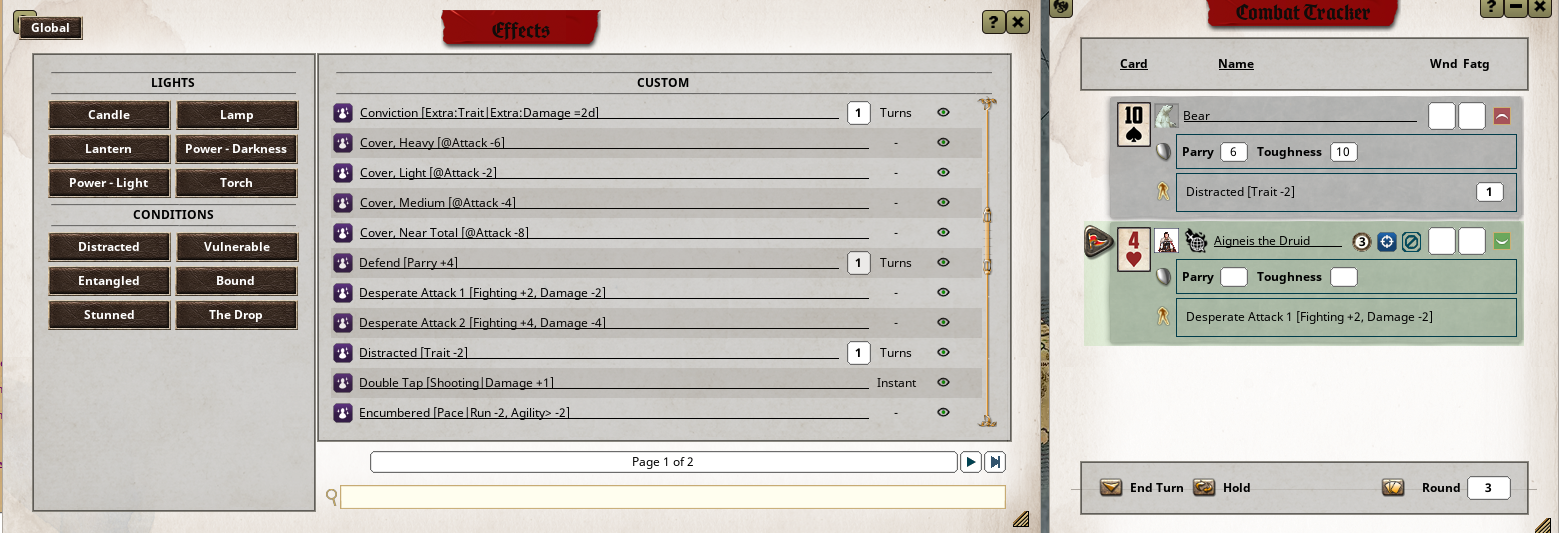
- Different from Fantasy Grounds - ELI5.
- These are effects that are applied during combat, either globally, or individually on a character.
- Visible in the Fantasy Grounds - ELI5
- Can last multiple rounds
- Plays a huge part in automation
- If the GM for example tells you that you can decide if you want to make the target Distracted or Vulnerable, simply drag the condition from here onto your target
- Or if you want to make a Desperate Attack, click the Effect to apply it to yourself
- Works automatically with any rolls while the effect is active, so no need to juggle modifiers.
Options
Already discussed in the Campaign Setup section.
Character Sheet
Finally, the Creme de la Creme: The Character Sheet. This is your absolute Bread and Butter as a player! Familiarizing yourself with both this window, as well as your character of course, will greatly speed up gameplay and also improve your experience!
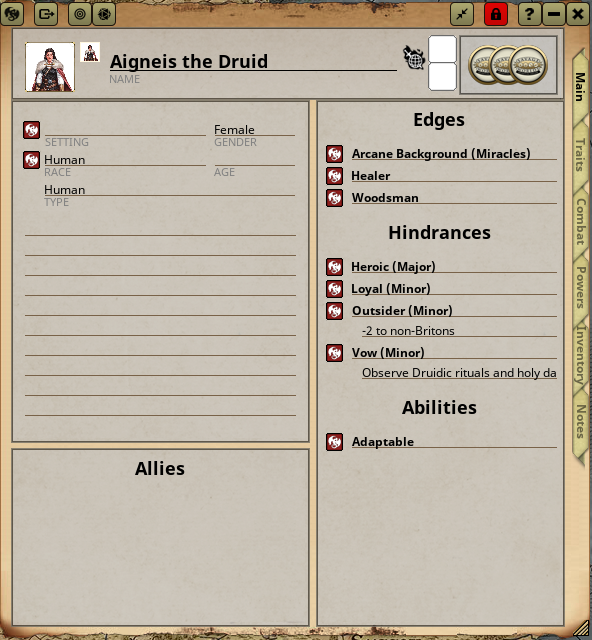
There are multiple tabs, each serving a specific purpose.
Note
Note that normally your character is locked, indicated by the red lock symbol in the top button row.
This makes it so you can’t accidentally change stuff you won’t really need to access during normal play. However, there are scenarios necessitating an unlock. Simply press the lock icon, do what you need to do (e.g. choose Skills/Edges/etc. for your advance), then don’t forget to lock it again.

Top Row
The top row is persistent across tabs.
- Your character Portrait and Token
- You character’s name
- A symbol indicating your character is a Wildcard
- Custom dice skin (for this specific character only!)
- If activated as a setting rule: Conviction (not present in the screenshot)
- And finally your Bennies. You can ^5ae7b1
- double click this to spend a benny and announce what you want to do
- or even easier drag the Benny onto anything appropriate to automagically use it as intended.
Works for a huge amount of stuff
- Drag onto a skill to reroll
- Drag onto Damage to reroll
- Drag onto Shaken to remove it
- Drag onto Wounds to Soak it
- Drag onto incoming/outgoing Attack/Damage in the Combat Tracker to reroll/soak
- …

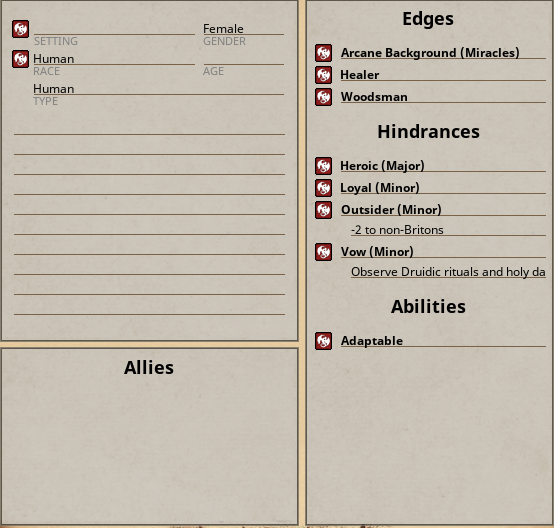
Main
This tab has some general information about your character
- Race/Ancestry
- A list of Allies
- Your Edges and Hindrances
- Any special Abilities
- You can also (while unlocked) add a description of your character, what makes it stand out, etc. in the multiline text region
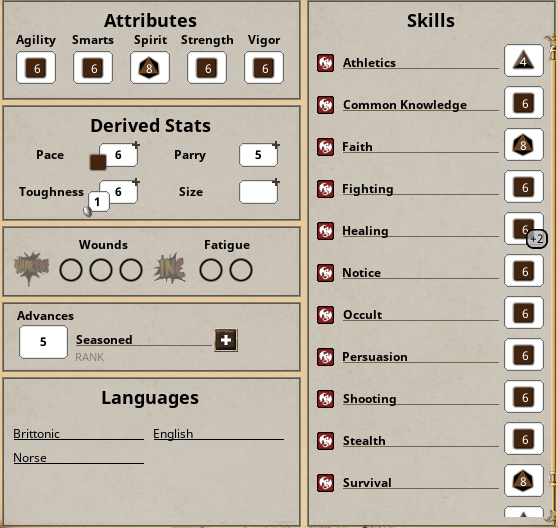
Traits
- Everything you need to make Trait rolls, be it Attributes, Skills, Derived Stats
- Also Status of your character in terms of Wounds, Fatigue, Advances and Languages
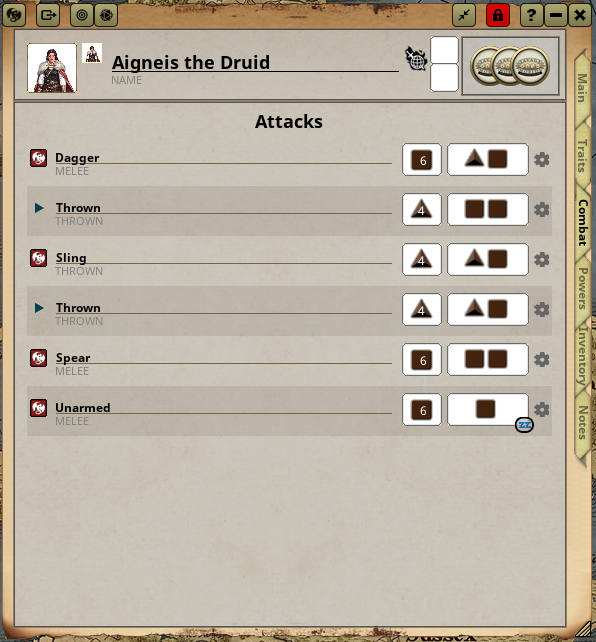
Combat
- Every attack/… that is not a Power
- Automatically lists attacks from equipped weapons
- Unarmed attack included for convenience
Tip
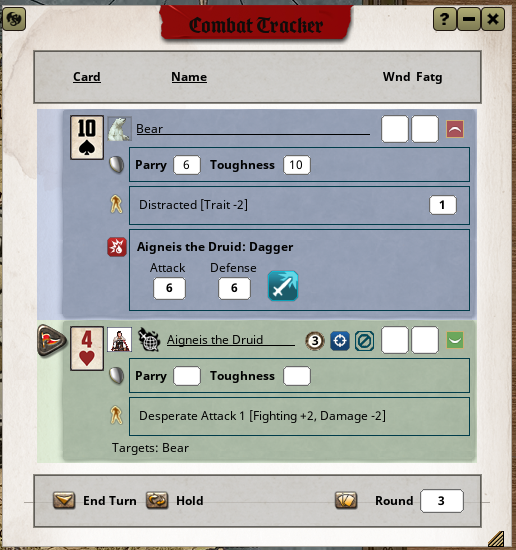
Normally you always drag the left singular die (button) onto the target. This is the actual attack. The right button (wider) is for the damage. If you hit with the attack, you can then easily see an entry pop up in the Fantasy Grounds - ELI5.
Here you can just double click the obviously designed damage button, to roll for damage and apply it! It also auto detects raises and rolls the bonus damage die with your damage roll where applicable.
Note that the GM has to accept the whole interaction to apply the damage!
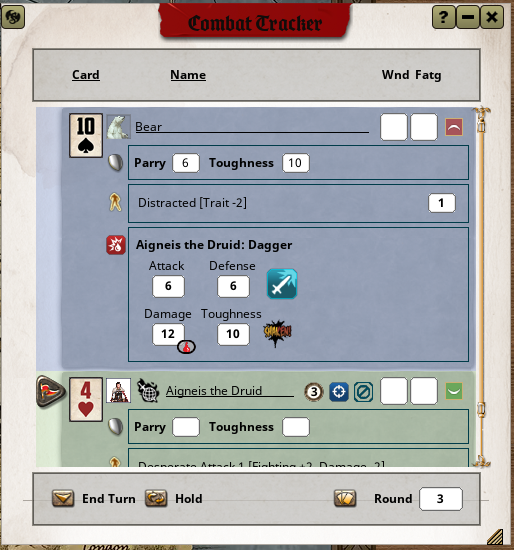
Tip
If you’re missing an attack in this list, make sure the Weapon in your Fantasy Grounds - ELI5 is actually equipped!
Powers
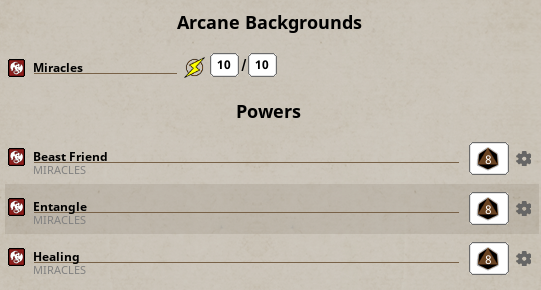
- Only available if you have an Arcane Background Edge!
- Lists all available Powers, including all Trappings!
- To use a Power
- Calculate the number of Power Points you need to spend
- Click the Lightning an appropriate number of times
- Roll the Power’s die
- Profit
- When you want to use a Benny to regain Power Points, simply drag it on the appropriate Arcane Background title
- If you regain Power Points the regular way, hold down
Ctrland use the Mouse’s Scroll Wheel to increase to the right amount or left click the field and type in the number using your keyboard
Inventory
- Currency
- Items
- Shineys
- Also, e.g., Bullets (where you’d need to decrease quantity if you want to reload!)
- Weapons
- Armor
- Vehicles
- Also shows load limit and encumbrance
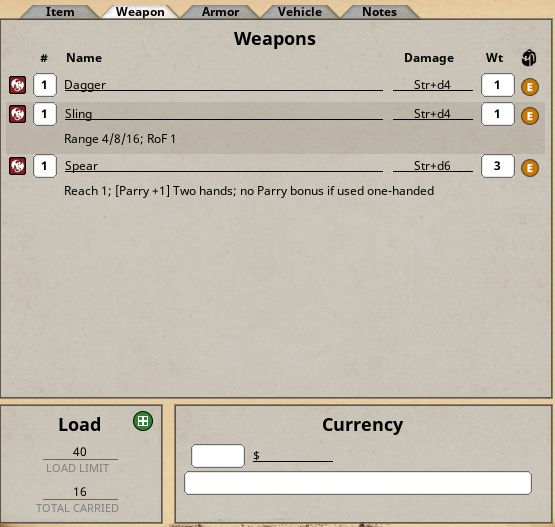
Important
You should make sure that any Weapon or Armor you actually intend to make use of is Equipped and not only Carried. Every Item is marked with a small symbol.
- Green C: Carried
- Orange E: Equipped
Notes
- Space for any notes you want to take for your Character
- Great for Background information
- Freeform
- Character Sheet needs to be unlocked!
Making Rolls
As you saw there are a bunch of clickable (dice) buttons. To make a Trait/Damage/whatever roll, simply either double click the die icon, or click it and drag away. This will roll the die or display them as if they were in your hand. Simply fling them to make, the roll, or drop carefully without moving the mouse to cancel the action.
Map
This is a very extensive topic so it’s best if you ask your GM should anything be unclear.
-
Clicking on your token opens your character sheet
-
Zoom in and out using the scroll wheel
-
Click the scroll wheel (middle mouse button) to pan the map
-
Move by dragging your token or by using the arrow keys. If the GM has turned on Token Lock (often times during an encounter) movement gets planned and needs to be accepted by the GM
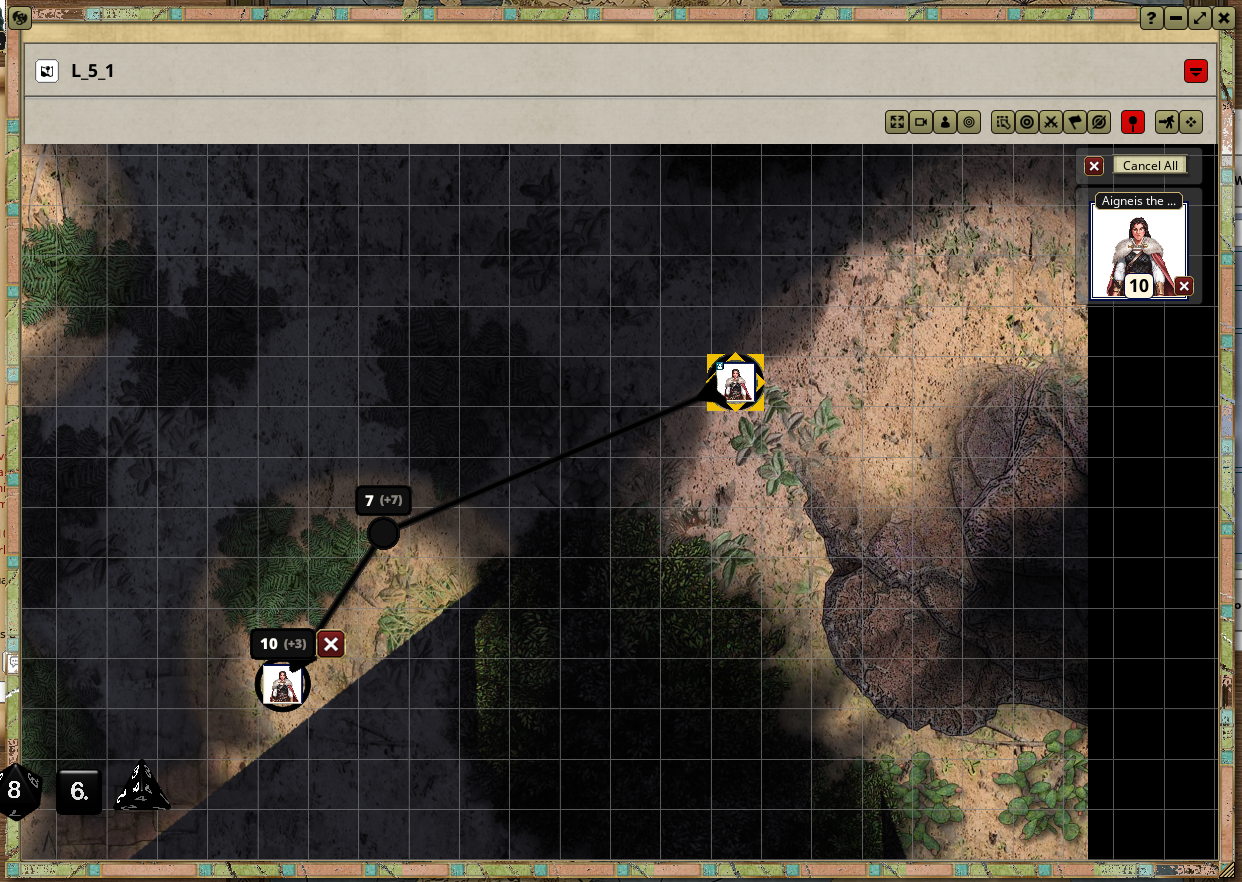
- If you want to undo a move (segment), hold down
Altwhile retracing the path to delete or modify it. - Press X to dismiss the movement entirely
- If you want to undo a move (segment), hold down
-
If Grid Lock has been turned on you can/should only move in half grid increments. You can temporarily circumvent it by holding down
Ctrlwhile dragging your move -
If Line of Sight has been turned on, you can’t see past walls, doors, and more
-
If Lighting has been turned on, you need a light source to see, or have stuff like Darkvision
-
There are multiple Mouse Modes
 From left to right:
-
Selection Mode: Select one or multiple tokens
-
Target Mode: Easily select (multiple) targets for your attacks (can be cleared in the Fantasy Grounds - ELI5 or using the Clear Targets Button). You see targets when hovering over your token
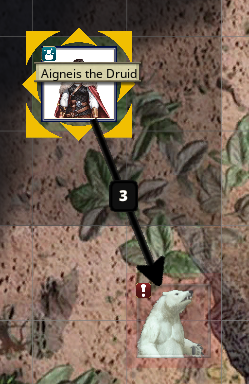
-
Target Enemy Units: Target all enemy units
-
Target Friendly Units: Target all friendly units
-
Clear Targets: Same functionality as in the Fantasy Grounds - ELI5
-
-
Next to the Mouse Modes you can show/hide Pins (linked content, e.g. Parcels/Loot you find, etc.)
-
Next to that there is a button you shall not touch! (Throws errors if you do it on your own. Your GM will tell you when to press it)
-
Finally you can toggle a small navigation panel to pan/zoom the map
-
You can rotate your token by scrolling the mouse wheel while holding down
Shift -
Right clicking on the map opens a menu where you can select Small/Medium/Large Burst or Cone Templates
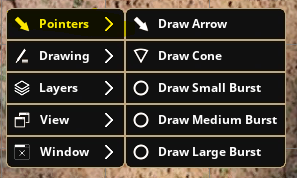
- Select the appropriate template and then drag your mouse from the origin point you want to place it at (you can edit it afterwards by dragging the anchor point(s) if the placement is screwed up).
- You can also quickly draw arrows by holding the left and right mouse button and then dragging from the origin to the destination, which let’s you quickly and easily gouge distances! Pressing both mouse buttons without dragging, deletes it, too!
-
If you already have pointers on the map, you can also clear them this way
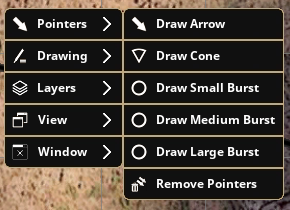
Tip
You can also target units when Fantasy Grounds - ELI5 by
Ctrl-Clicking them- Dropping the dice onto their token
Maximizing the Map
Especially during combat it might be cumbersome to always juggle the map window around. You can use the Increase Size button of the map’s title bar.
If it’s increased, you can also Decrease Size with the newly added button
There are 4 levels:
- Normal (default)
- Map is put into the Background, all windows on top, between the Chat Window and the Sidebar, but below the Tabletop List
- Map is now filling all the Background space left of the Sidebar, but behind even the Chat Window
- Sidebar and Chat Window are hidden and Map fills whole Background space